Clips: saving posts
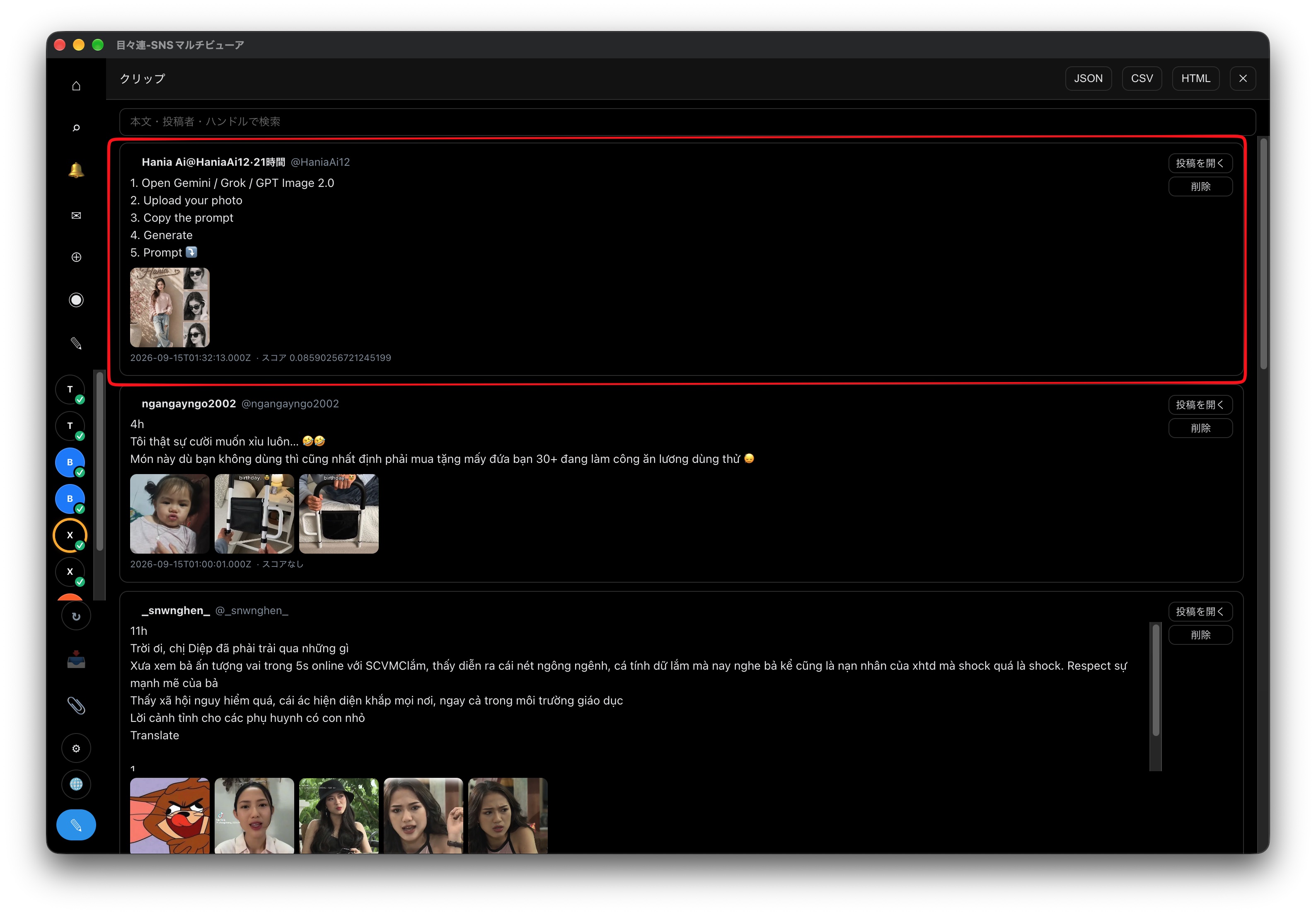
Right-click a post on X, Bluesky, or Threads to save it locally, then search or export your saved posts later.
Available without Pro (a free feature).
Clipping a post
In an X, Bluesky, or Threads column, right-click a post to see "Clip this post" in the context menu.
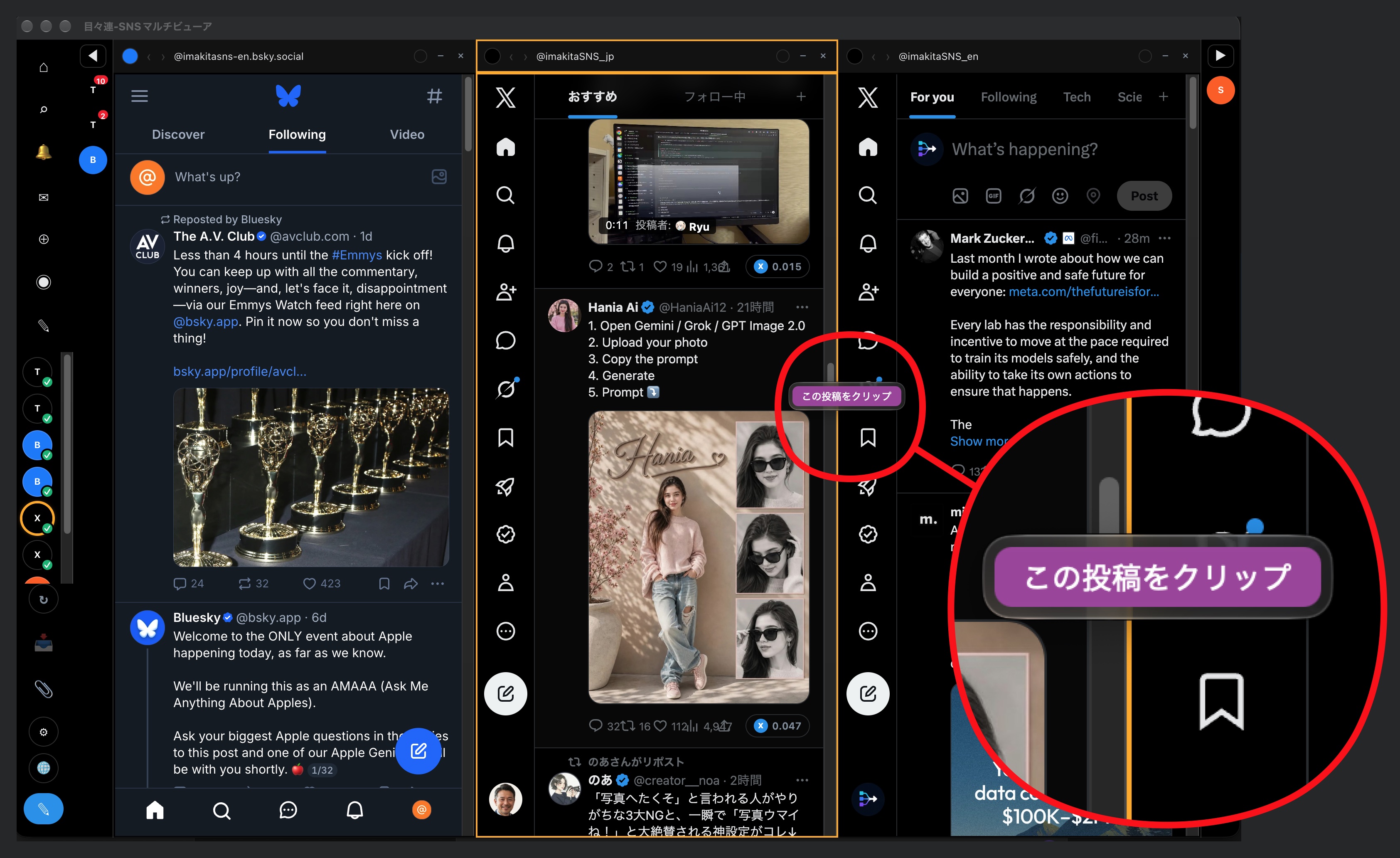
Selecting it saves:
- The post's text
- The author's name and handle
- Attached images
- The posted date/time
- (For X) the X Score, if it's showing
:::info Supported services Only X, Bluesky, and Threads posts can be clipped. mixi2 and Substack posts aren't supported and won't show the menu item. :::
Clipping the same post again doesn't add a duplicate — it refreshes the existing clip with the current content.
Tagging
"Clip this post" saves the post right away, then pops up a tag picker.
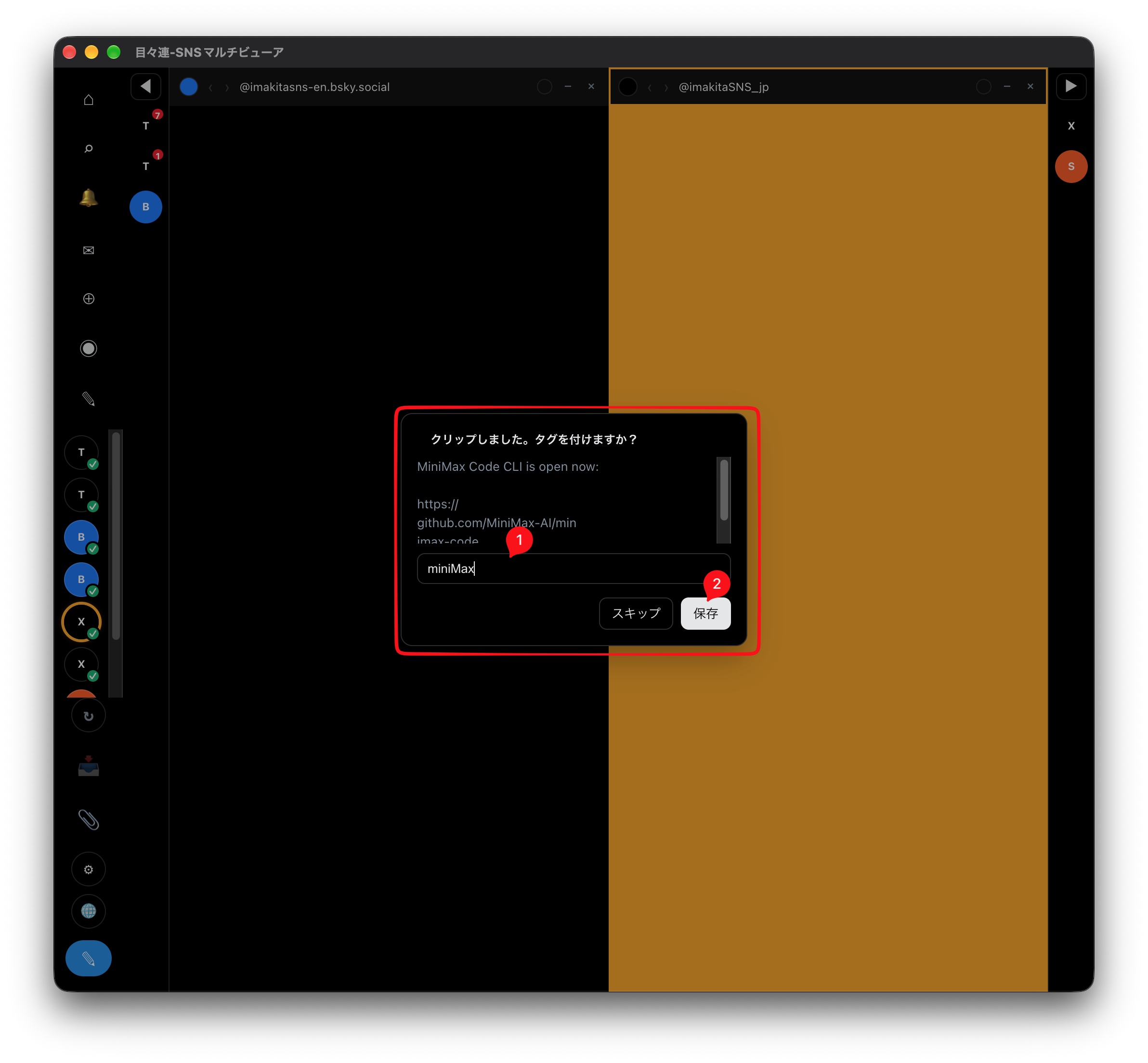
- Tags you've already used show up as suggestions — click one to add it.
- Type a name that isn't in the list and press Enter or , (comma) to create and add it as a new tag on the spot.
- Save confirms the tags. Skip is fine too — the clip is already saved by this point, so nothing is lost (it's just left untagged).
You can always add or change tags later (see below).
Browsing and searching clips
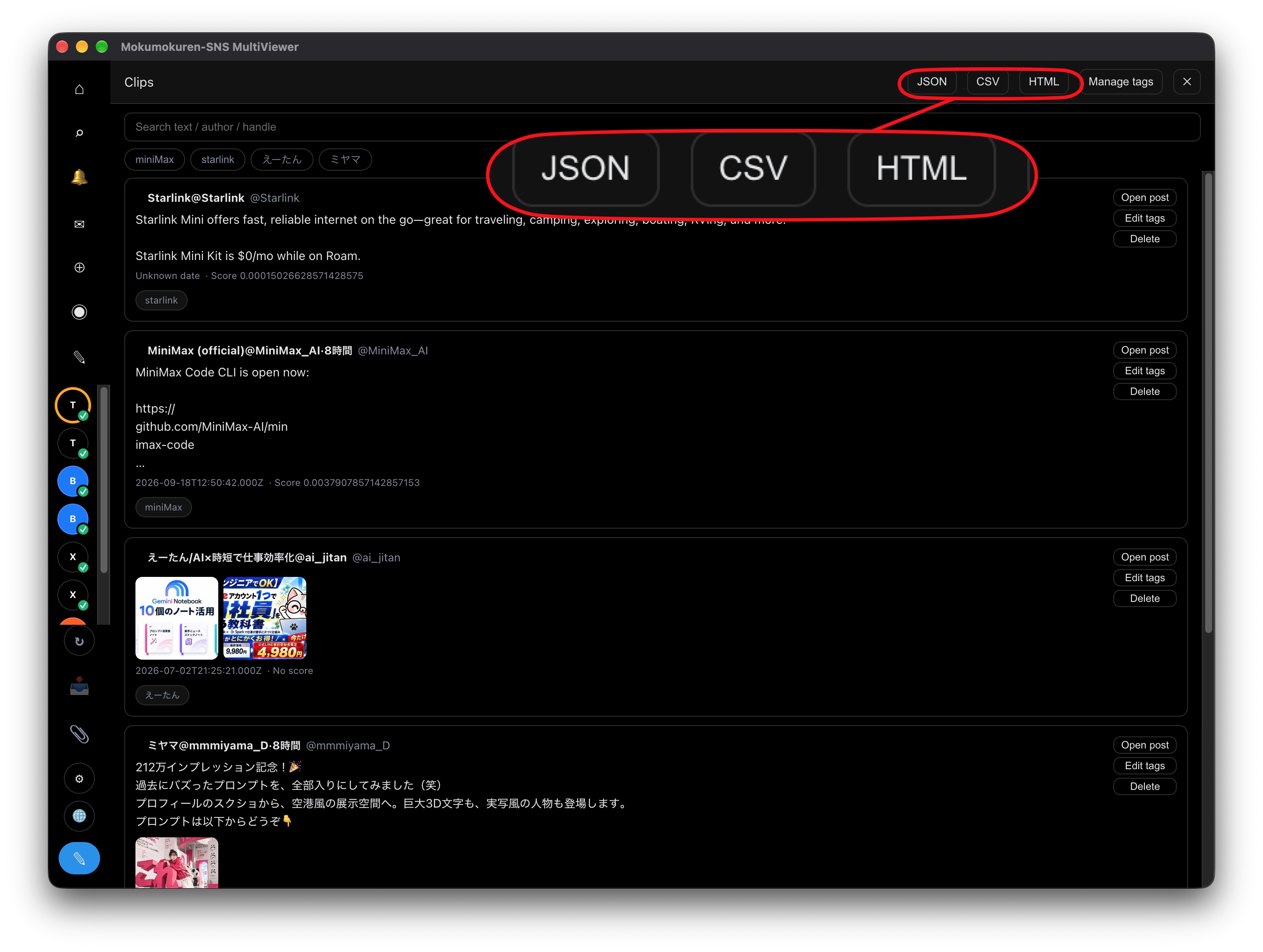
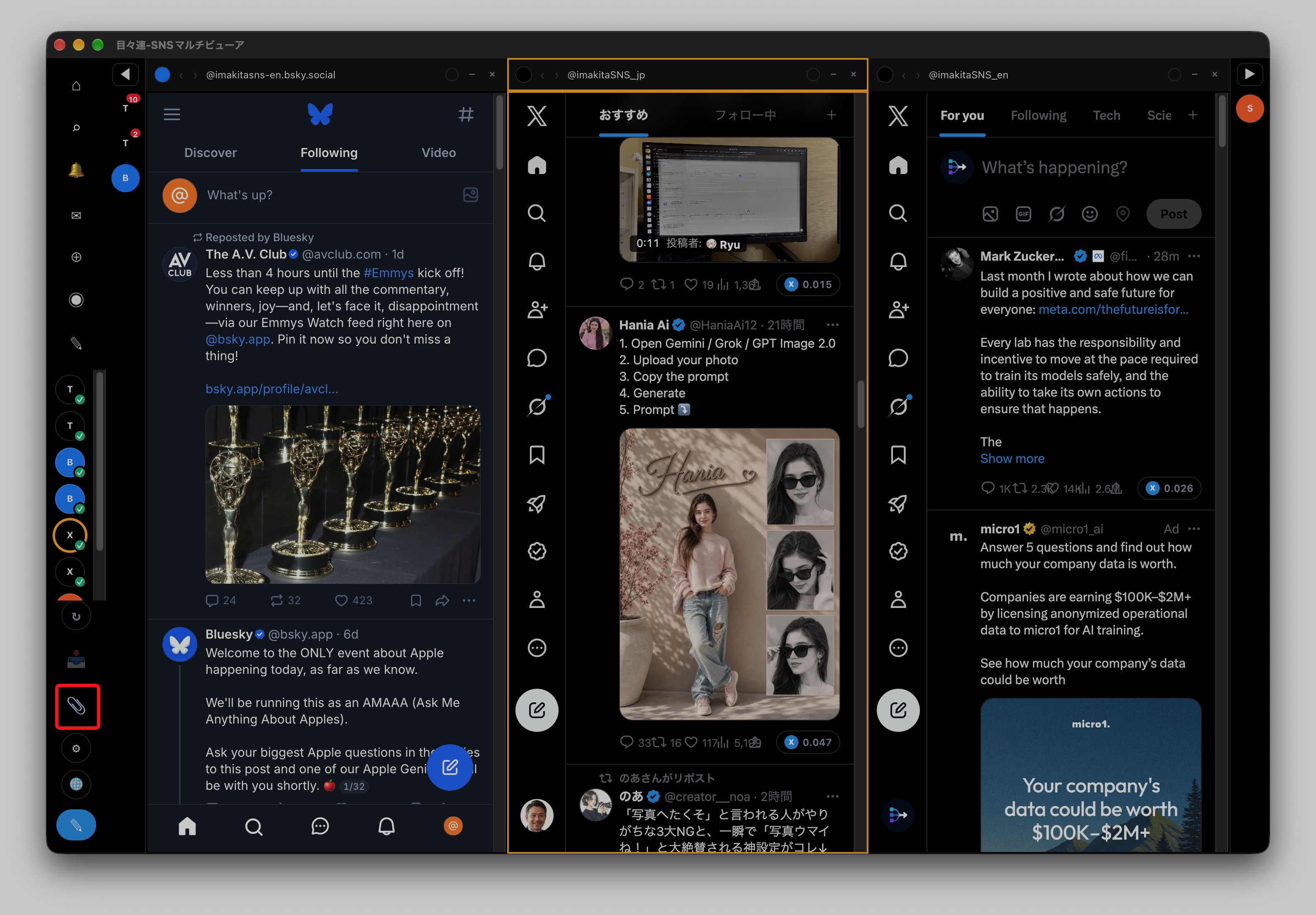
Open the Clips panel with the 📎 icon in the left sidebar.
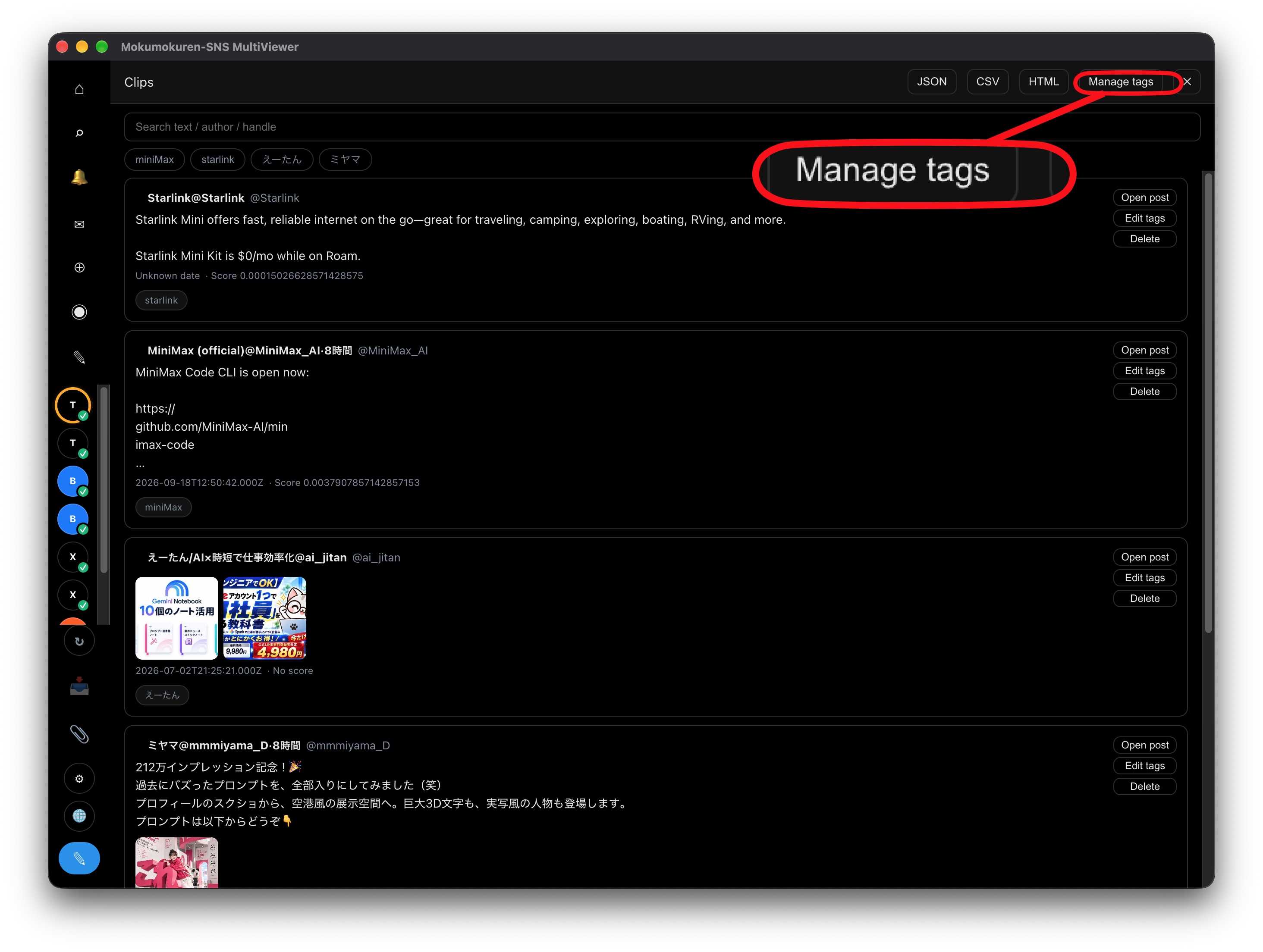
Type in the search box to filter by text, author name, or handle. Below it, every tag you've used shows up as a chip — click one (or several) to only show clips carrying at least one of the selected tags (multi-select, OR match). Click a chip again to deselect, or use Clear filter to reset them all.
Each clip has:
- Open post — opens the original post in your browser.
- Edit tags — add or remove tags on that clip (same picker as when you clip a post).
- Delete — permanently removes that clip (cannot be undone).
Managing tags
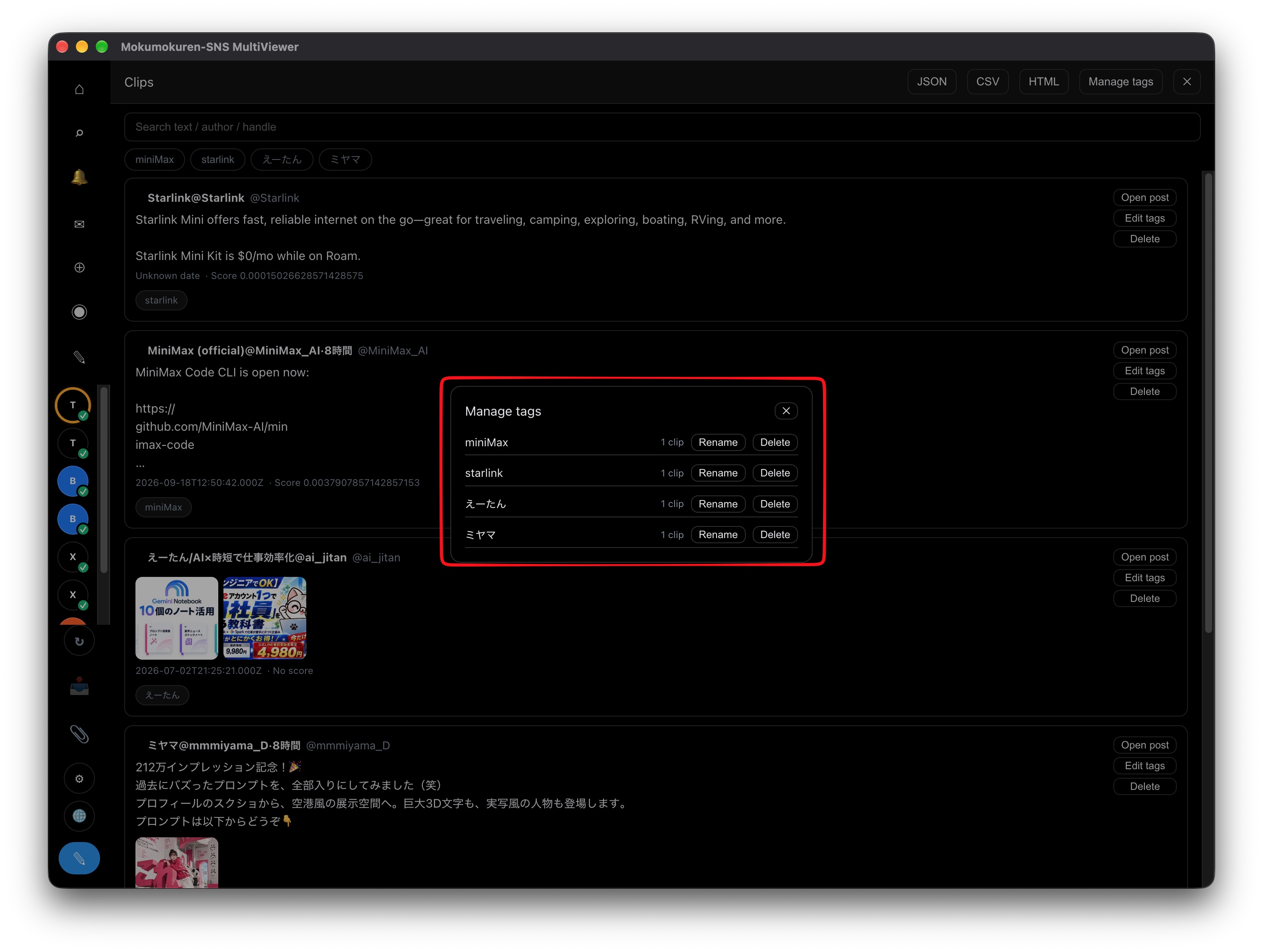
Use the "Manage tags" button at the top of the Clips panel to rename or delete tags.
- Each tag shows how many clips carry it.
- Rename — changes the tag's name everywhere it's used, across every clip that has it.
- Delete — removes the tag itself, taking it off every clip that carries it (a confirmation dialog appears; this can't be undone). The clips themselves aren't deleted.
Exporting
Use the buttons at the top of the Clips panel to export all your saved clips to a file. Tags are included in every format.
| Format | Contents |
|---|---|
| JSON | Every field, as-is (for reuse in other tools/scripts) |
| CSV | A format spreadsheet apps can open (tags are joined into one column with ; ) |
| HTML | A single self-contained file with built-in search (browse/search offline, no app needed) |