Working with columns
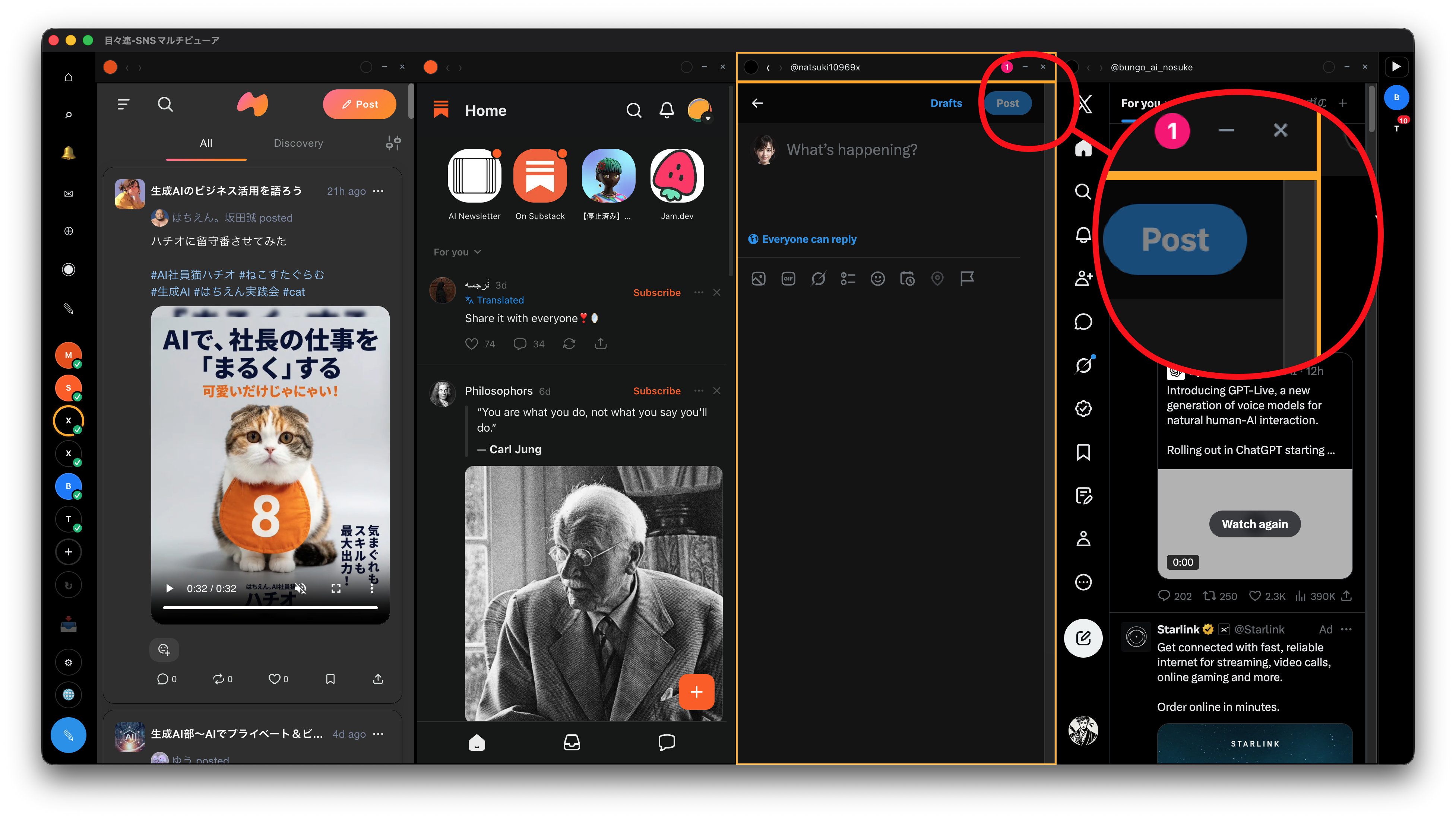
Each account is displayed as one column (a vertical pane), side by side.
Screen layout
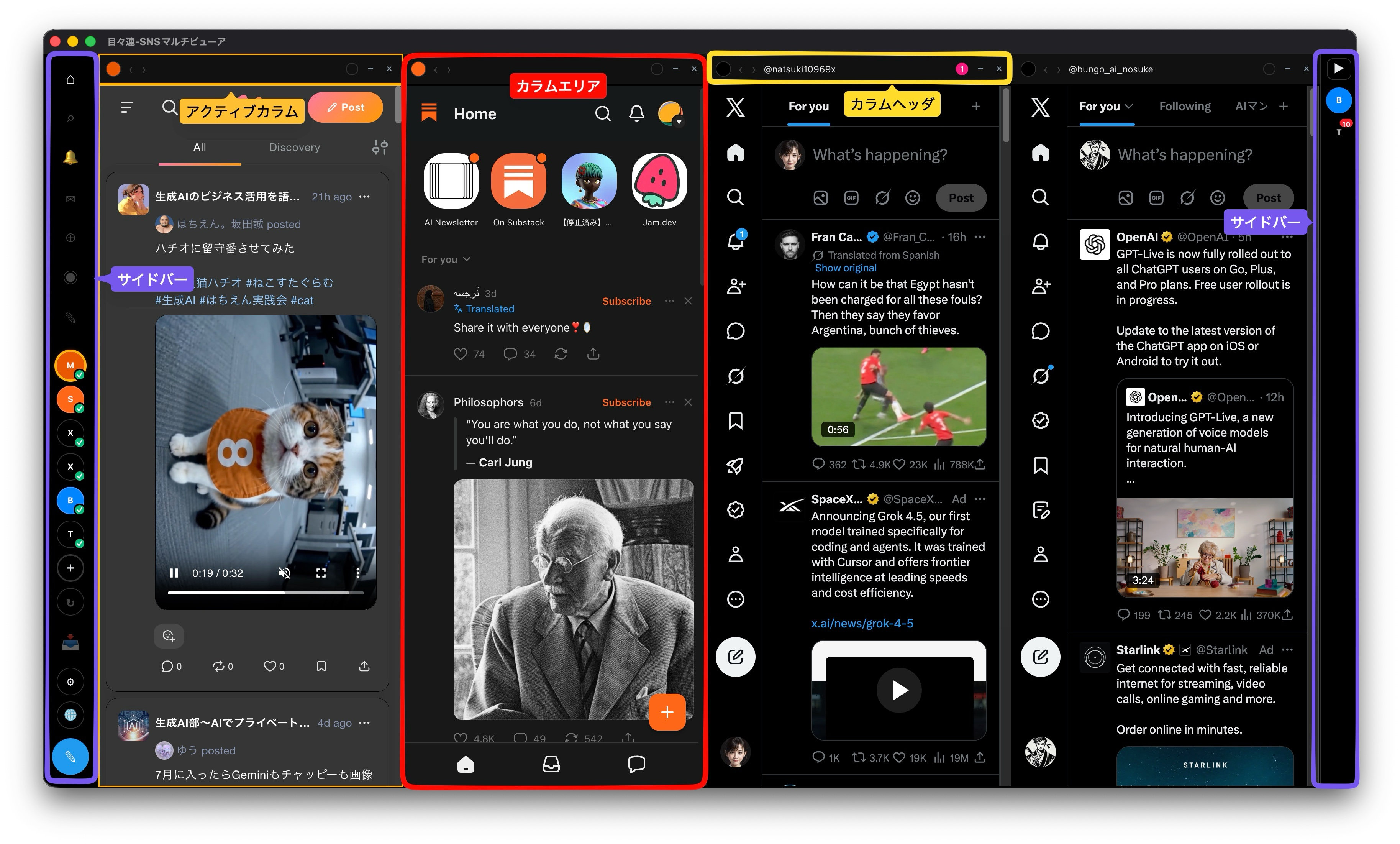
| Area | Role |
|---|---|
| Left sidebar | Navigation (top), account icons (middle), settings ⚙ / language 🌐 / Inbox 📥 / compose ✎ (bottom) |
| Column header | Service icon, back/forward, username, unread badge, hide/delete buttons |
| Column area | The account's SNS screen |
The active column
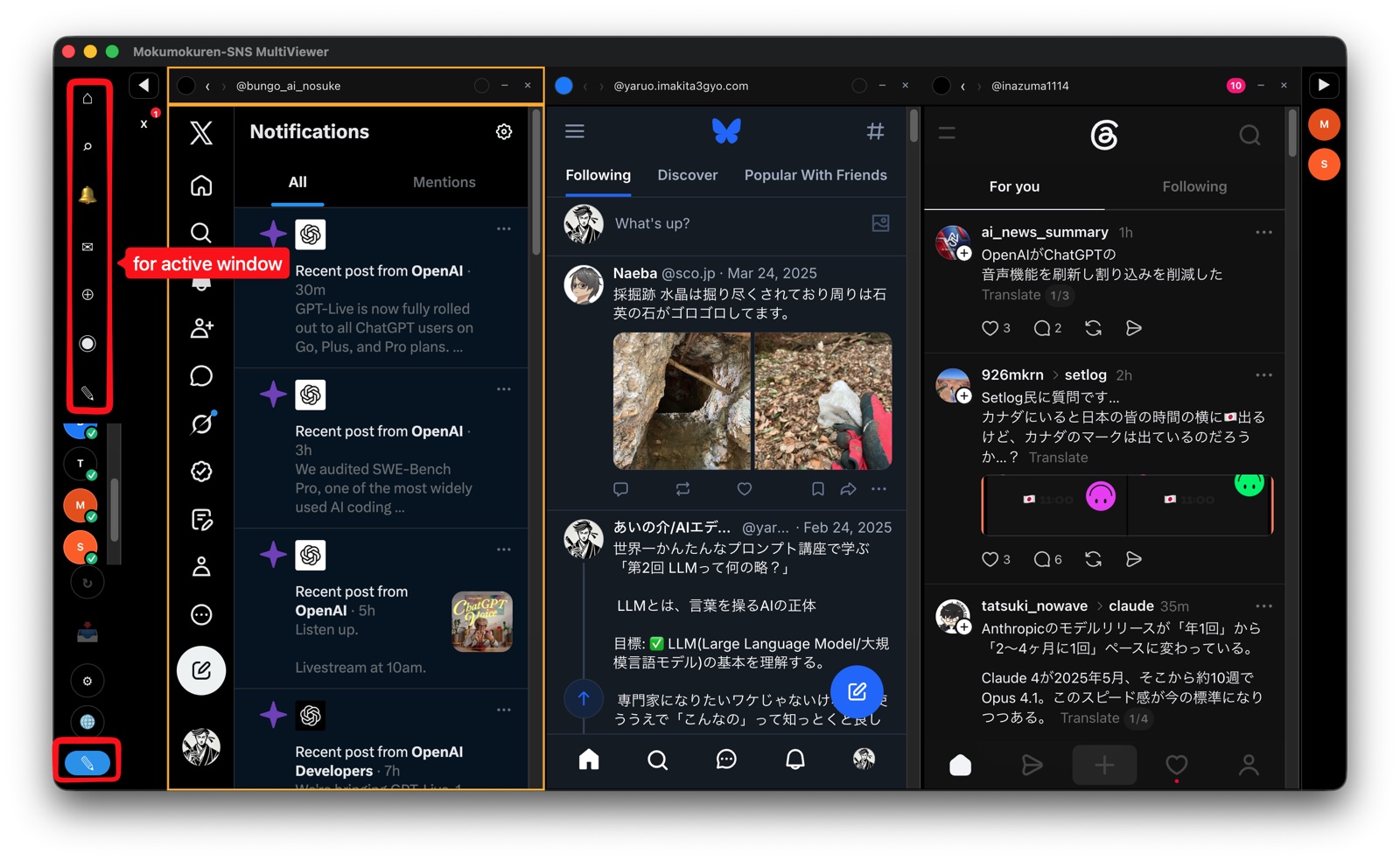
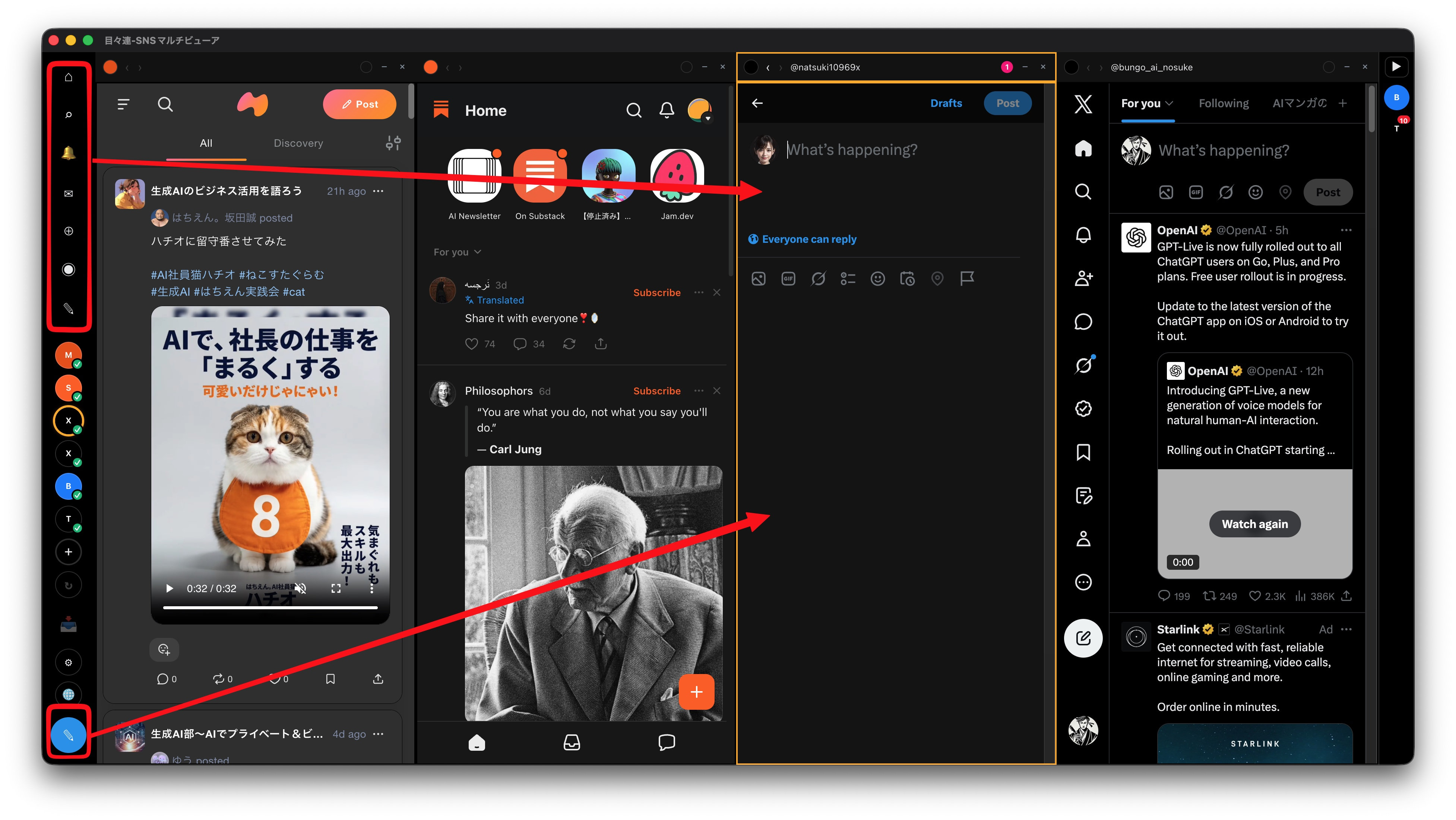
Sidebar navigation and the compose button act on the currently selected "active column". Its header is highlighted with an orange frame; there is always at most one. Click a column (or its header) to switch.
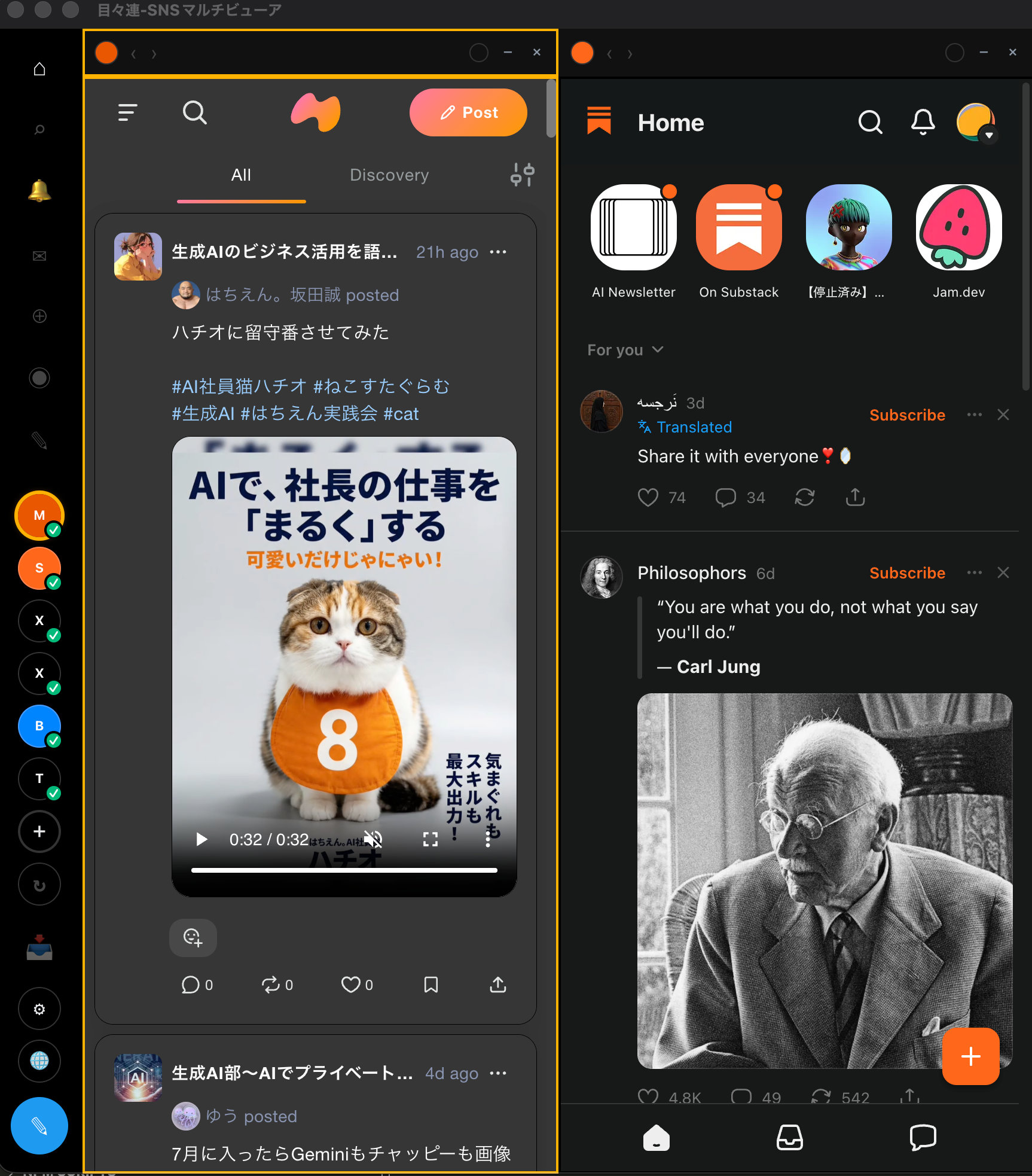
- Keyboard: Cmd/Ctrl + a digit (1–9, 0) switches to the corresponding column.
Navigation (sidebar, top)
Navigate the active column to Home, Search, Notifications, Messages, Bookmarks, Profile, and so on. Items a service doesn't support are disabled (greyed out) — e.g. mixi2 / Substack are mostly Home and Profile.
The compose button
✎ (Compose) at the bottom of the sidebar opens the active column's empty composer (different from "delivering" a draft — that happens from the Inbox).
Hiding and re-showing
- − (Hide) in a column header temporarily removes that column from the screen. The session (login state) is kept; click the sidebar icon to show it again.
- × (Delete) in the header deletes the account itself (its session data is removed permanently — this cannot be undone).
Reordering & scrolling
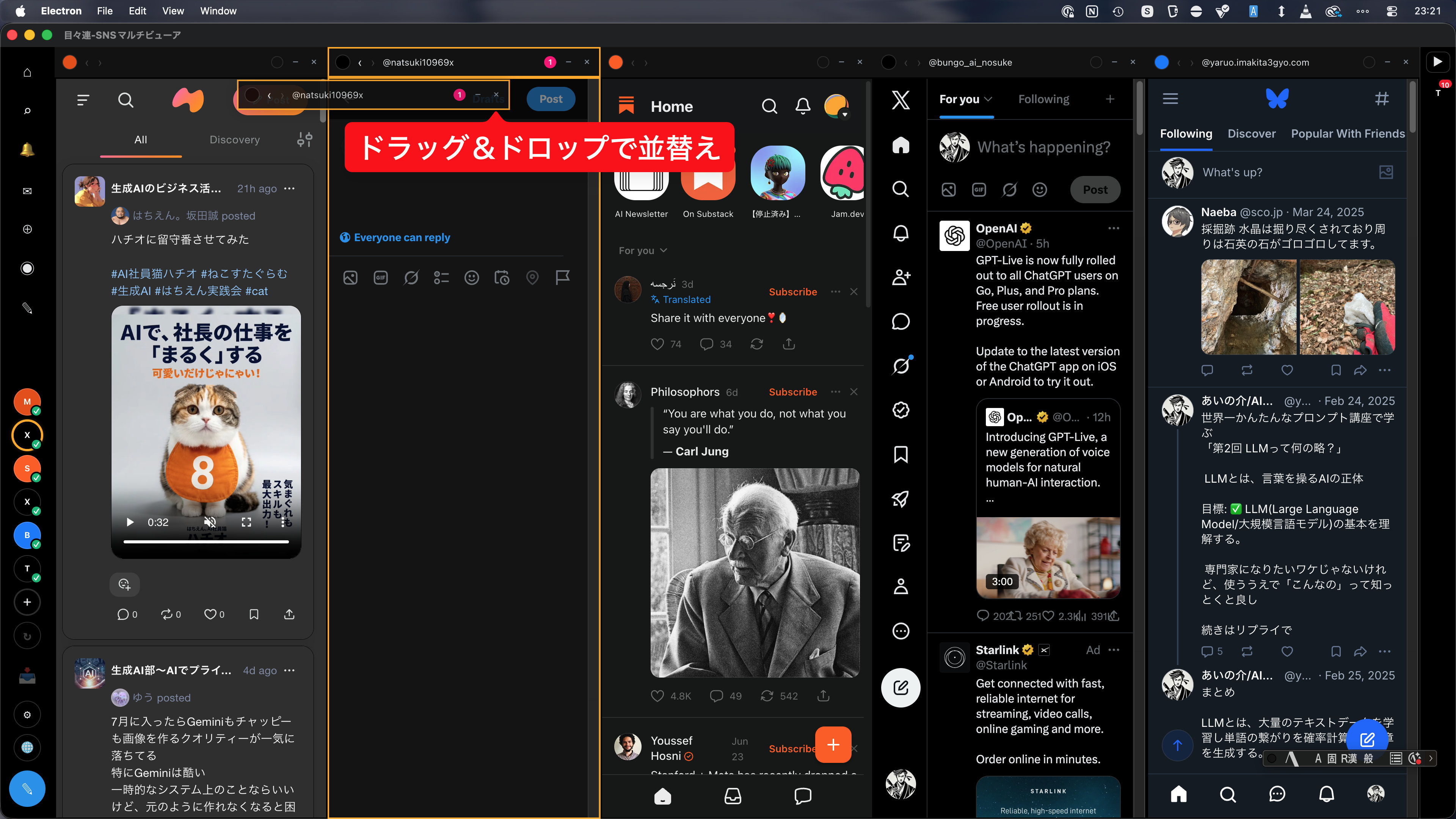
- Drag a column header to reorder columns.
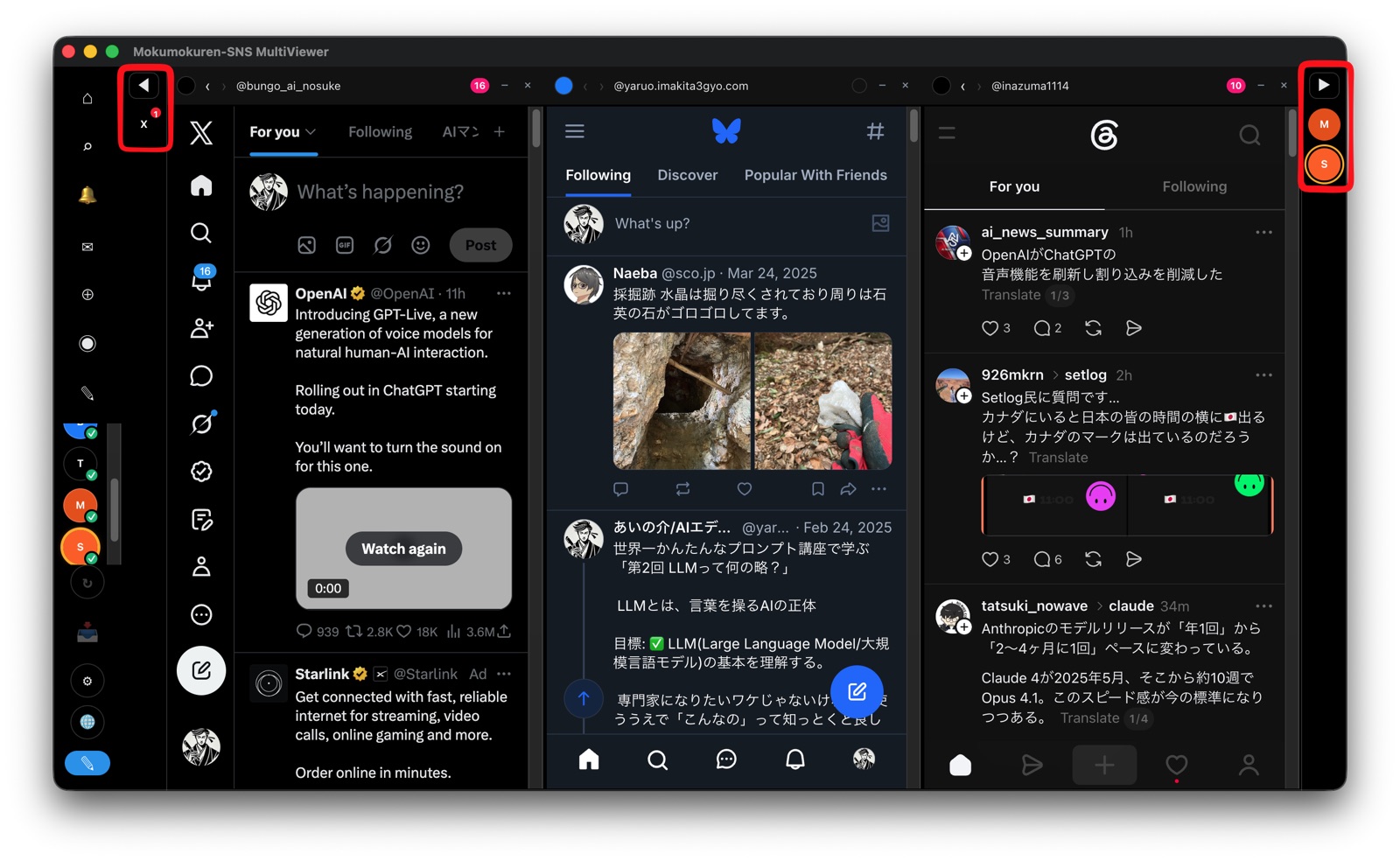
- When columns don't fit the window, ◀▶ rails appear at the edges to scroll the visible range.
Copying a link's URL
Right-click a link inside a post to see "Copy link address" in the context menu. Selecting it copies that link's URL to the clipboard.

Available in every column — X / Bluesky / Threads / mixi2 / Substack.
Right-clicking a post on X, Bluesky, or Threads also shows "Clip this post", even away from any link. See Clips: saving posts for saving the post itself.