Install & first launch
Download & install
- macOS: open the downloaded
.dmgand dragmokumokureninto Applications. - Windows: run the downloaded installer (
.exe). It supports both x64 and ARM.
If Windows shows "Windows protected your PC" SmartScreen may warn on first install. Continue via "More info" → "Run anyway". The installer is code-signed (publisher: Kazuya Inaba); this warning is normal for newly published apps and disappears automatically as download reputation builds.
On first launch the OS security prompt may appear (depending on distribution/signing).
First launch
Right after launch there are no accounts yet. Add one from the + button in the left sidebar.
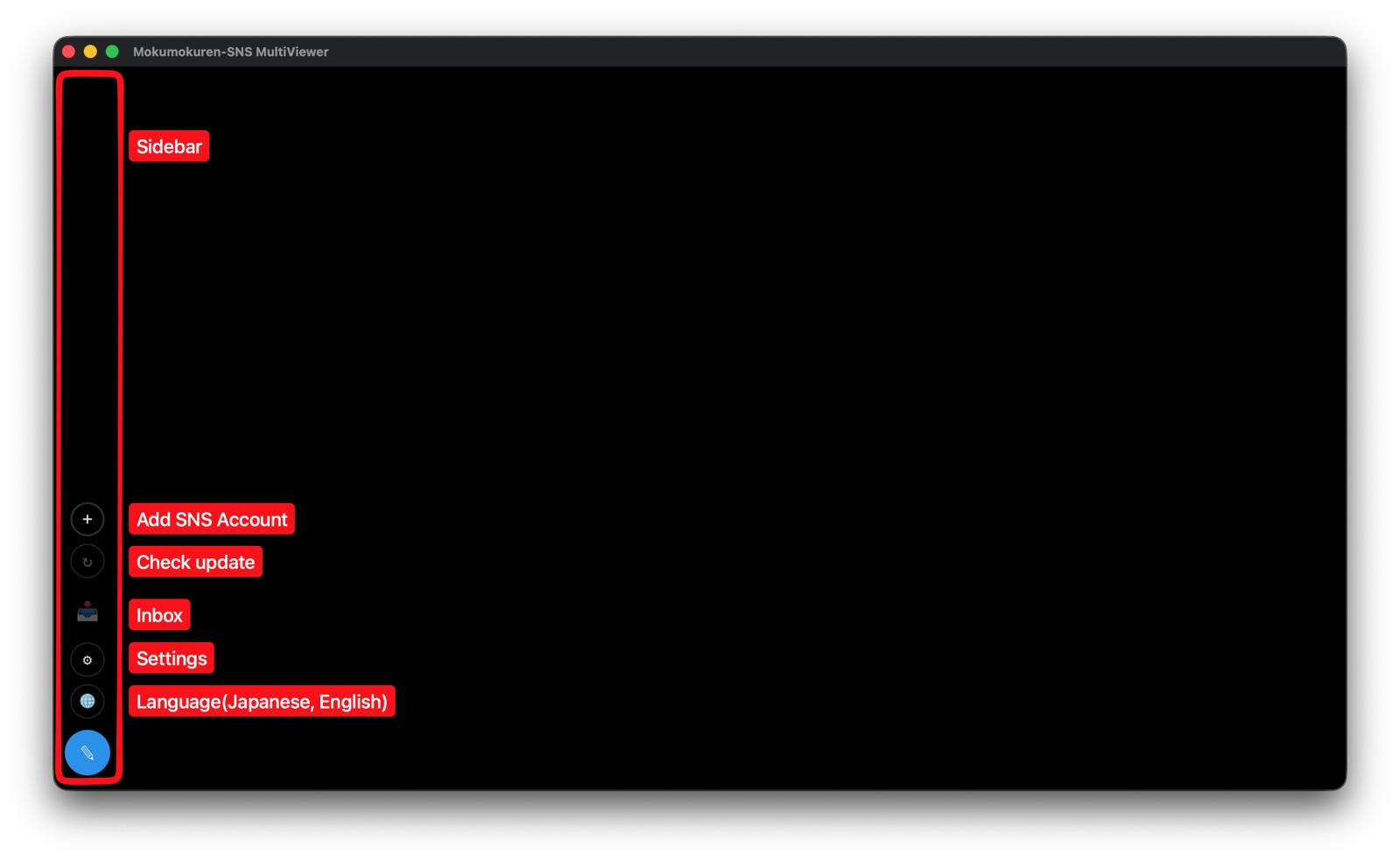
Adding accounts
-
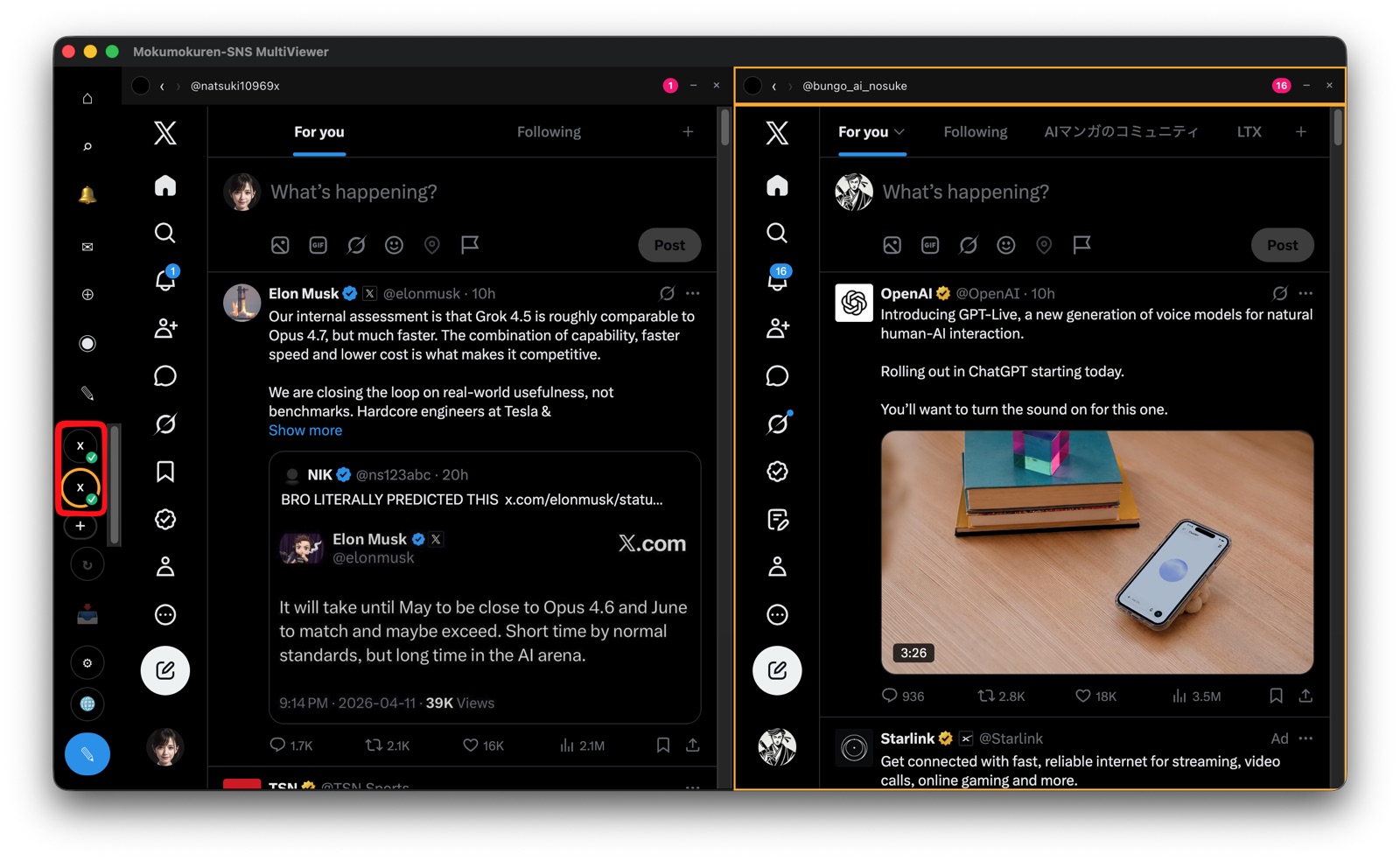
Click + (Add account) at the bottom of the left sidebar and pick a service (X / Bluesky / Threads / mixi2 / Substack).
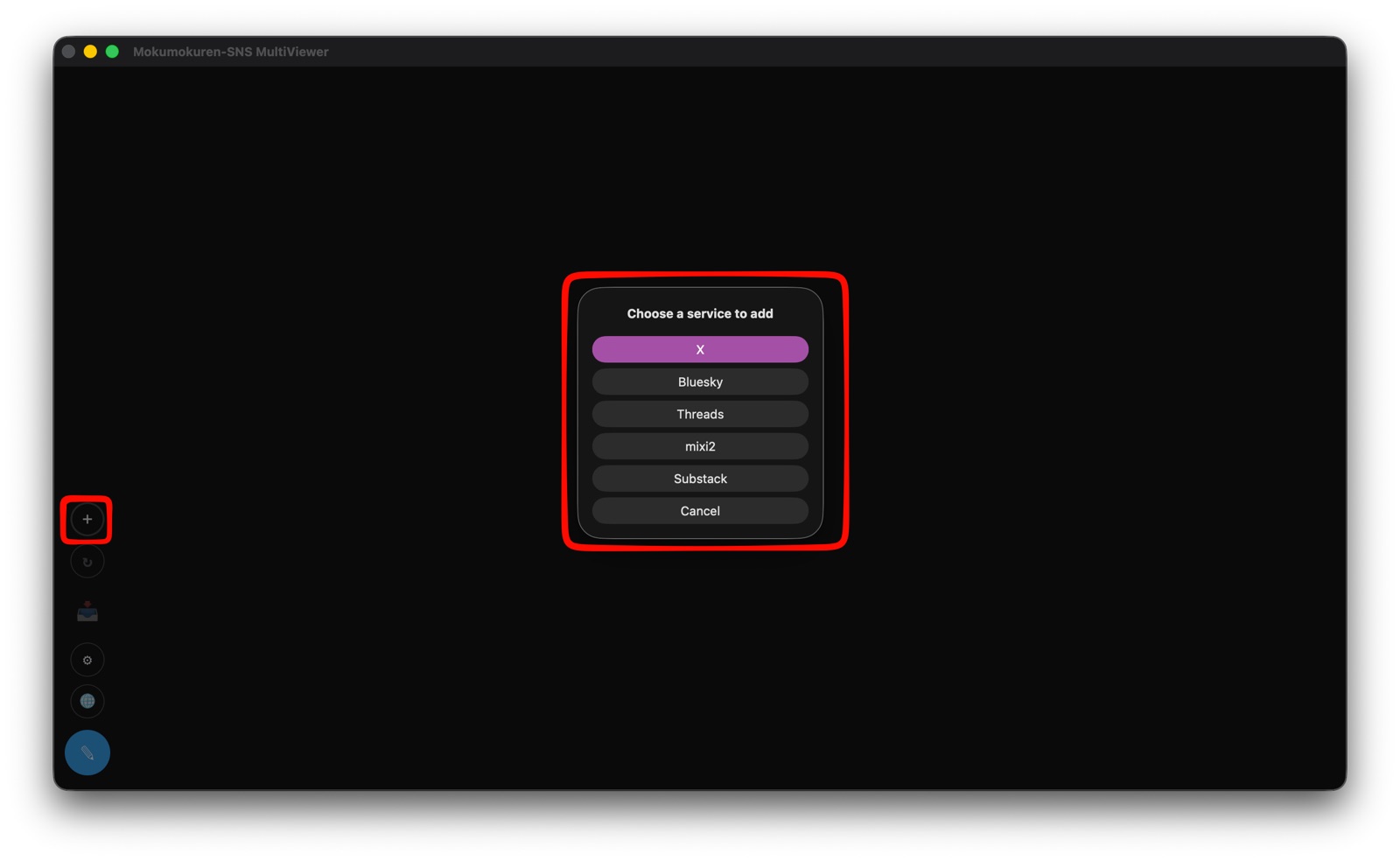
-
A new column appears, showing that service's login screen.
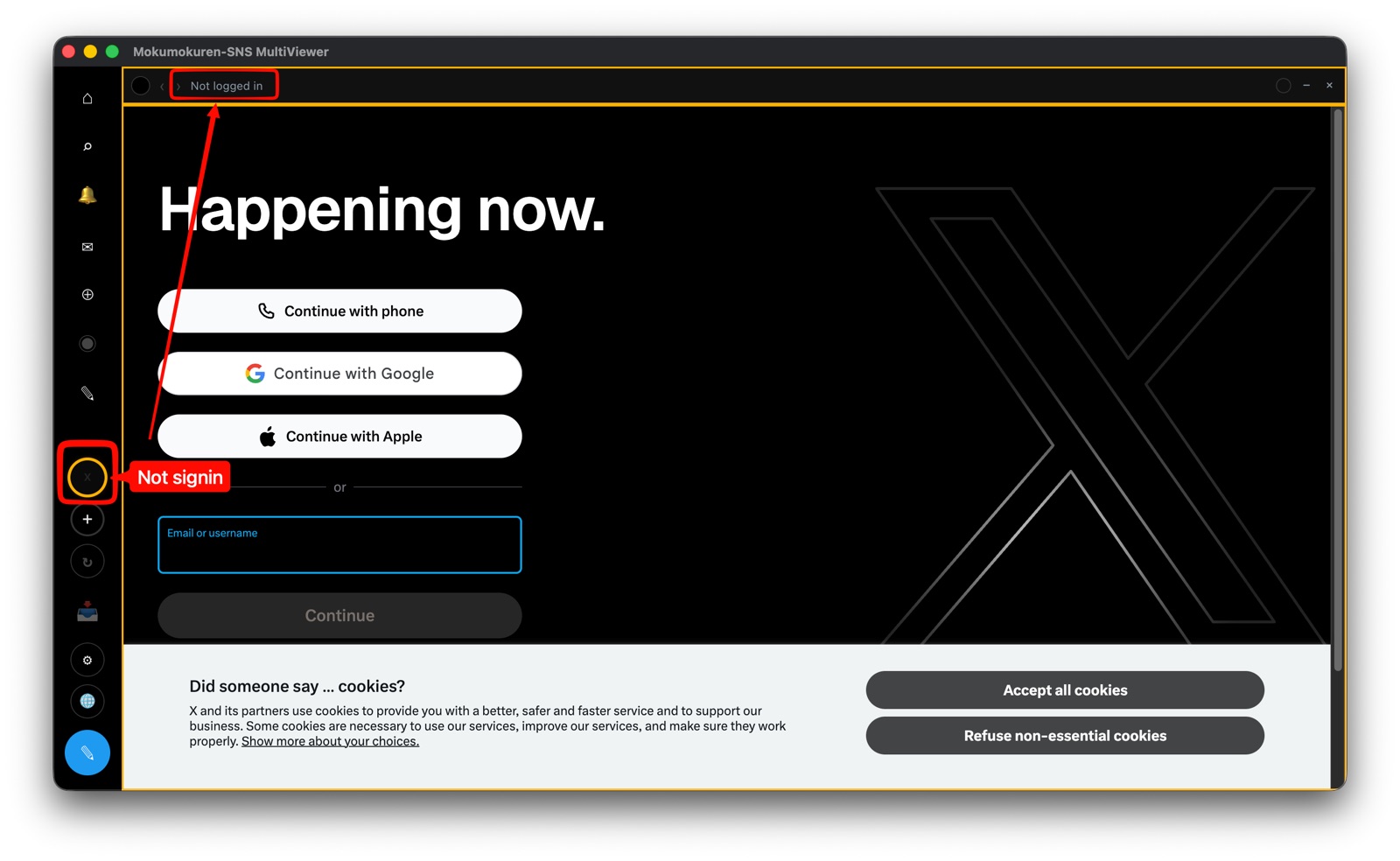
-
Sign in to the service inside the column. Once the login is detected, the sidebar icon gets a green check (✓).
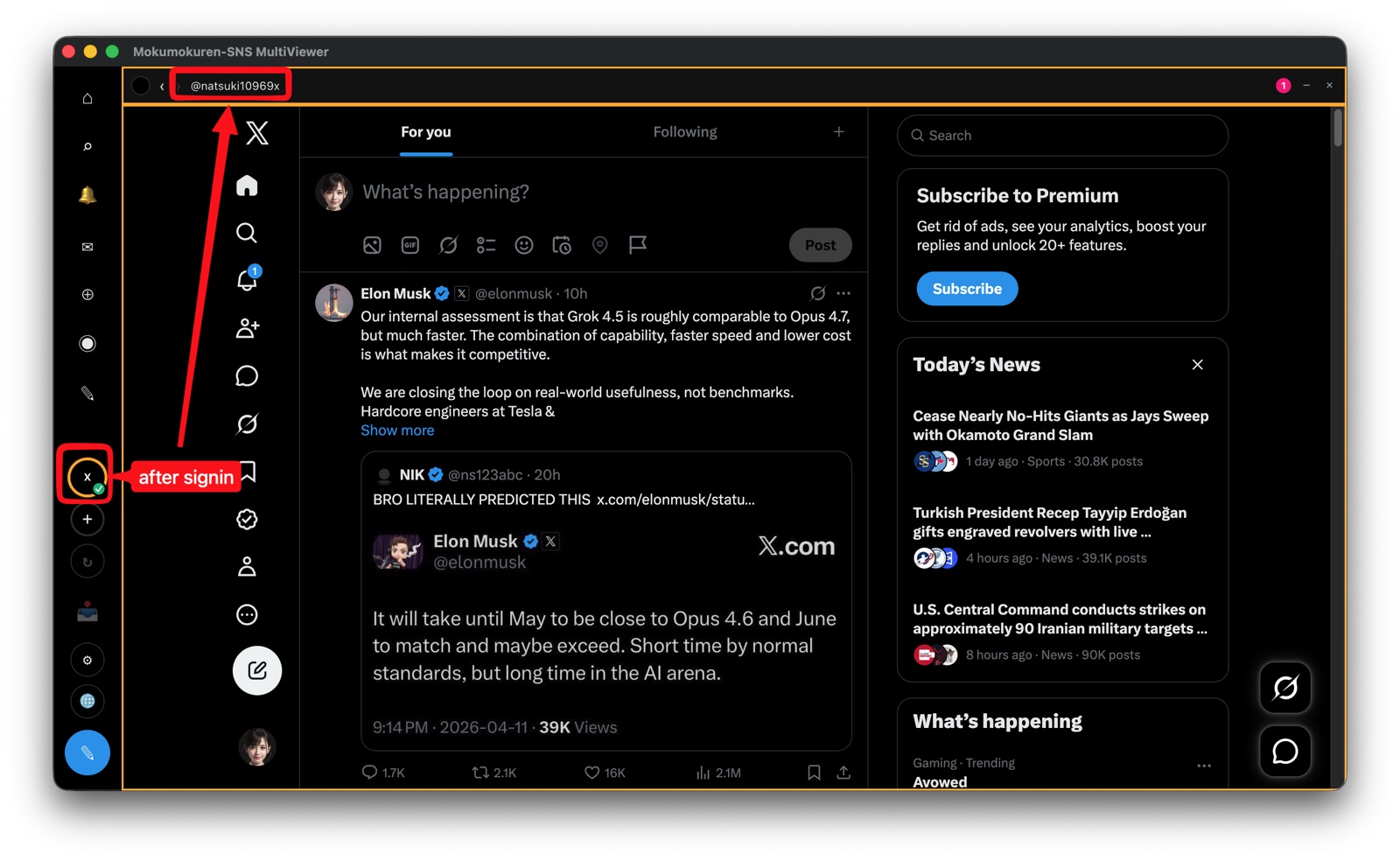
You can add several accounts of the same service. Each one gets its own independent session (login state).
Your login credentials are stored only on this device (see Sessions & security).
Next steps
- Showing, hiding, reordering → Working with columns
- Ingesting and posting drafts → Inbox: ingestion & delivery
- Connecting AI clients → MCP integration (Pro feature)