Inbox: ingestion & delivery
This is mokumokuren's core: ingest drafts made by external LLMs (Ingestion) → choose targets (Routing) → deliver into the compose forms (Delivery).
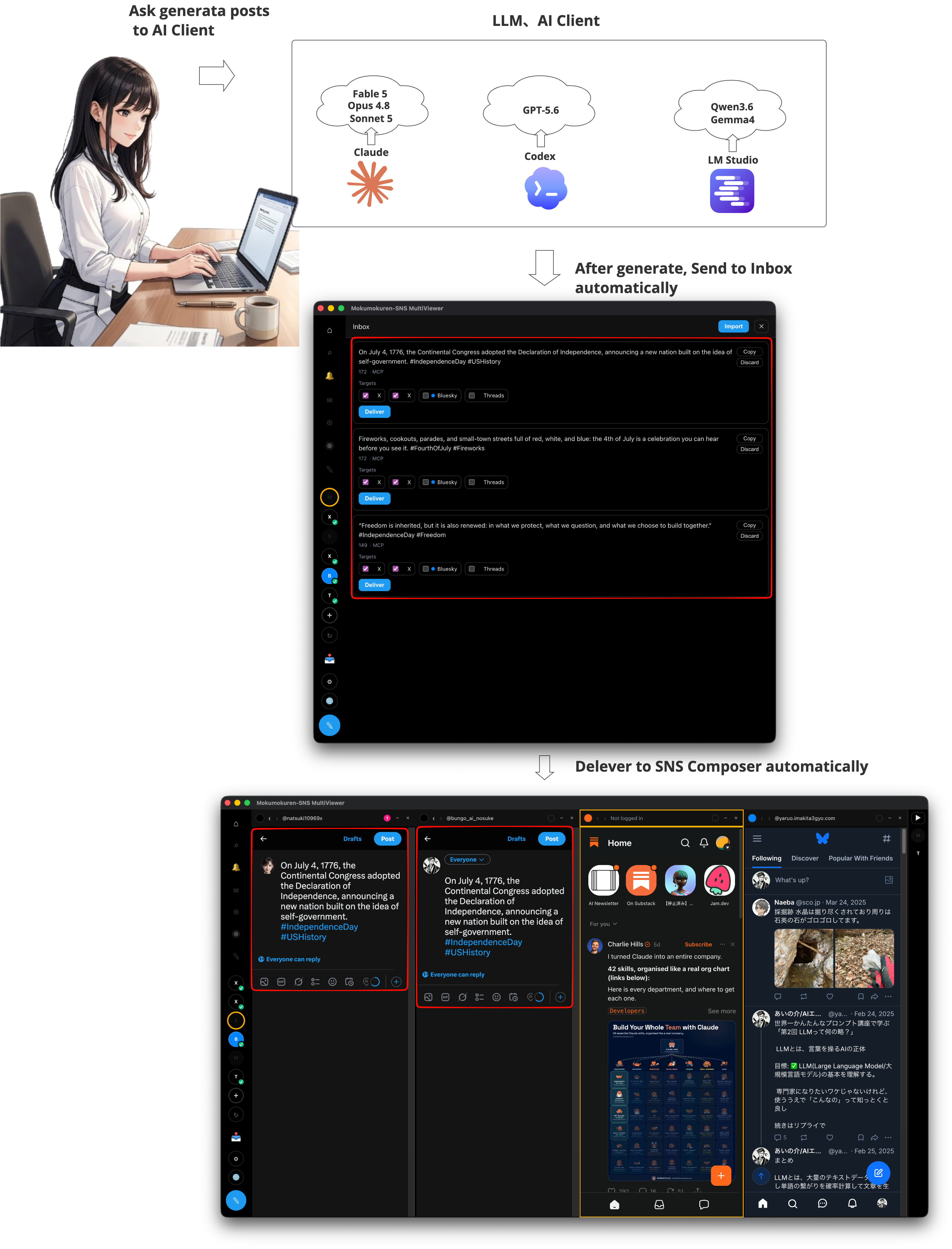
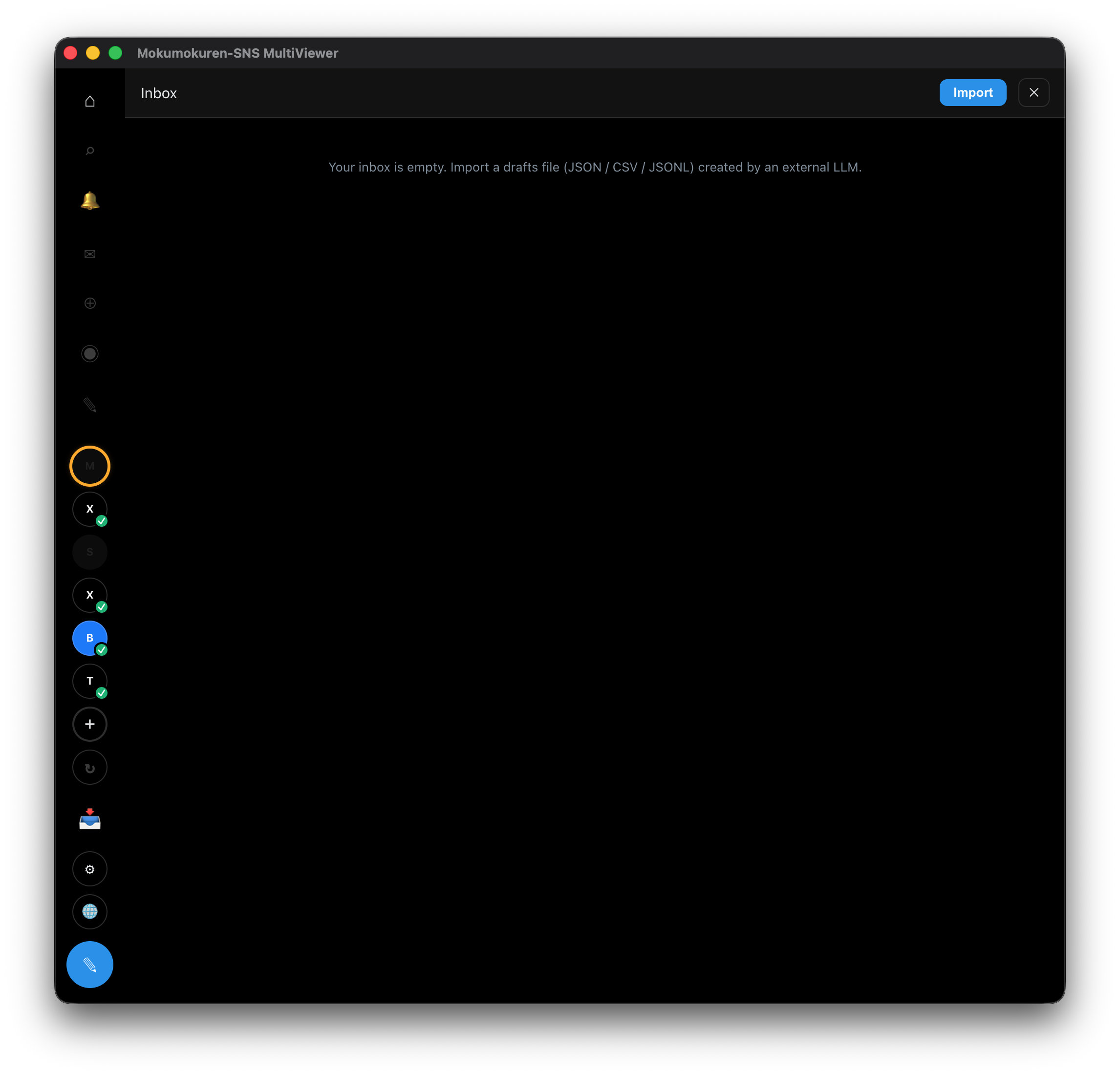
Open the Inbox with 📥 in the left sidebar.
:::info Pro feature Draft ingestion (File / MCP) is a Pro feature. See Pro. :::
Draft format
Only drafts in mokumokuren's format can be ingested. Fields:
| Field | Required | Description |
|---|---|---|
text | ✔ | Body (max 100,000 chars; no per-service length limits are enforced) |
title | Title (optional, for articles) | |
format | text or markdown (default text) | |
serviceHints | Initial routing hint (x / bluesky / threads / mixi / substack) | |
clientId | Idempotency key (re-importing the same id is skipped as a duplicate) |
Ingestion (two routes)
1. File Import
- Press the Import button in the Inbox.
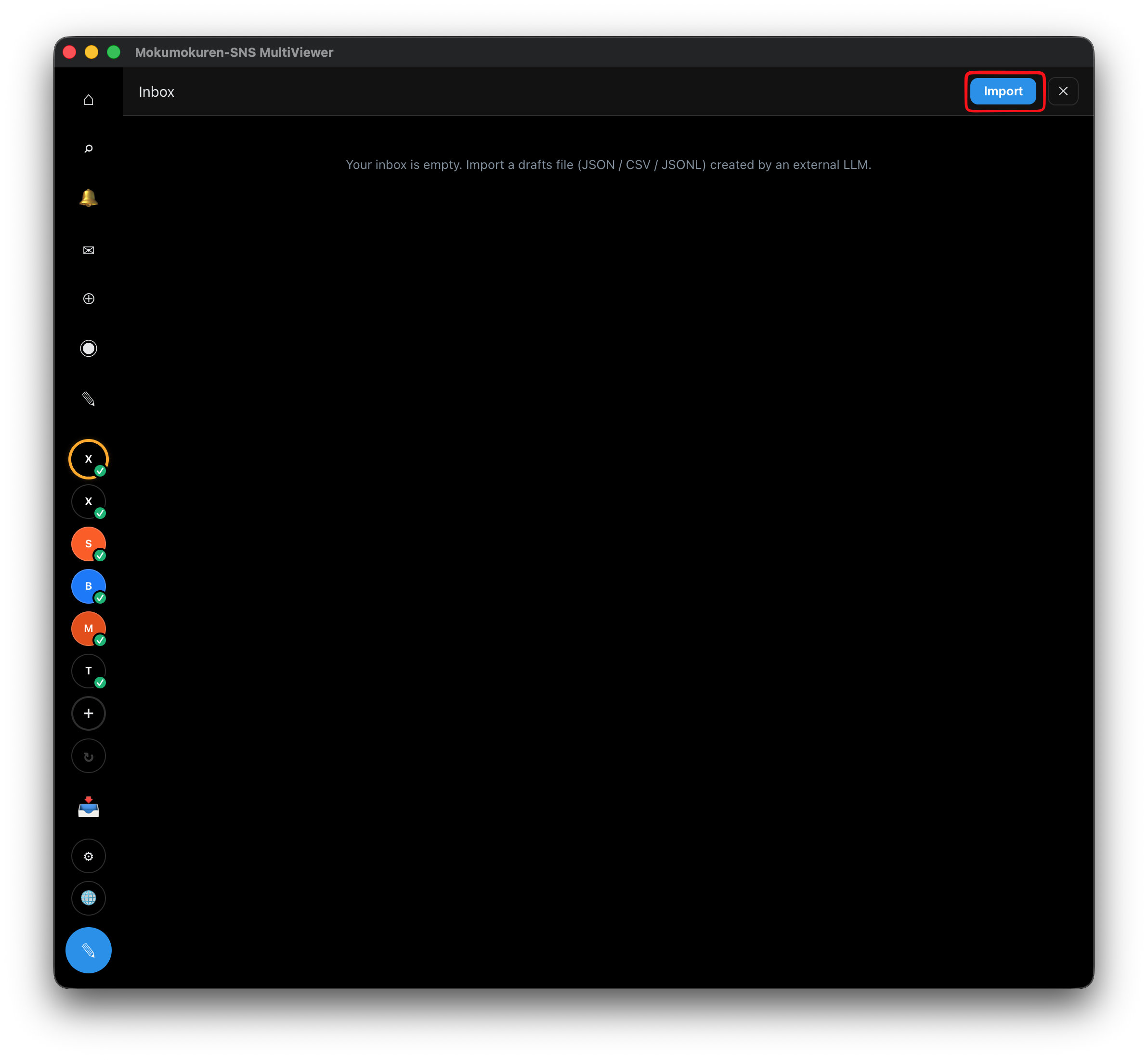
- Pick a JSON / JSONL / CSV file.
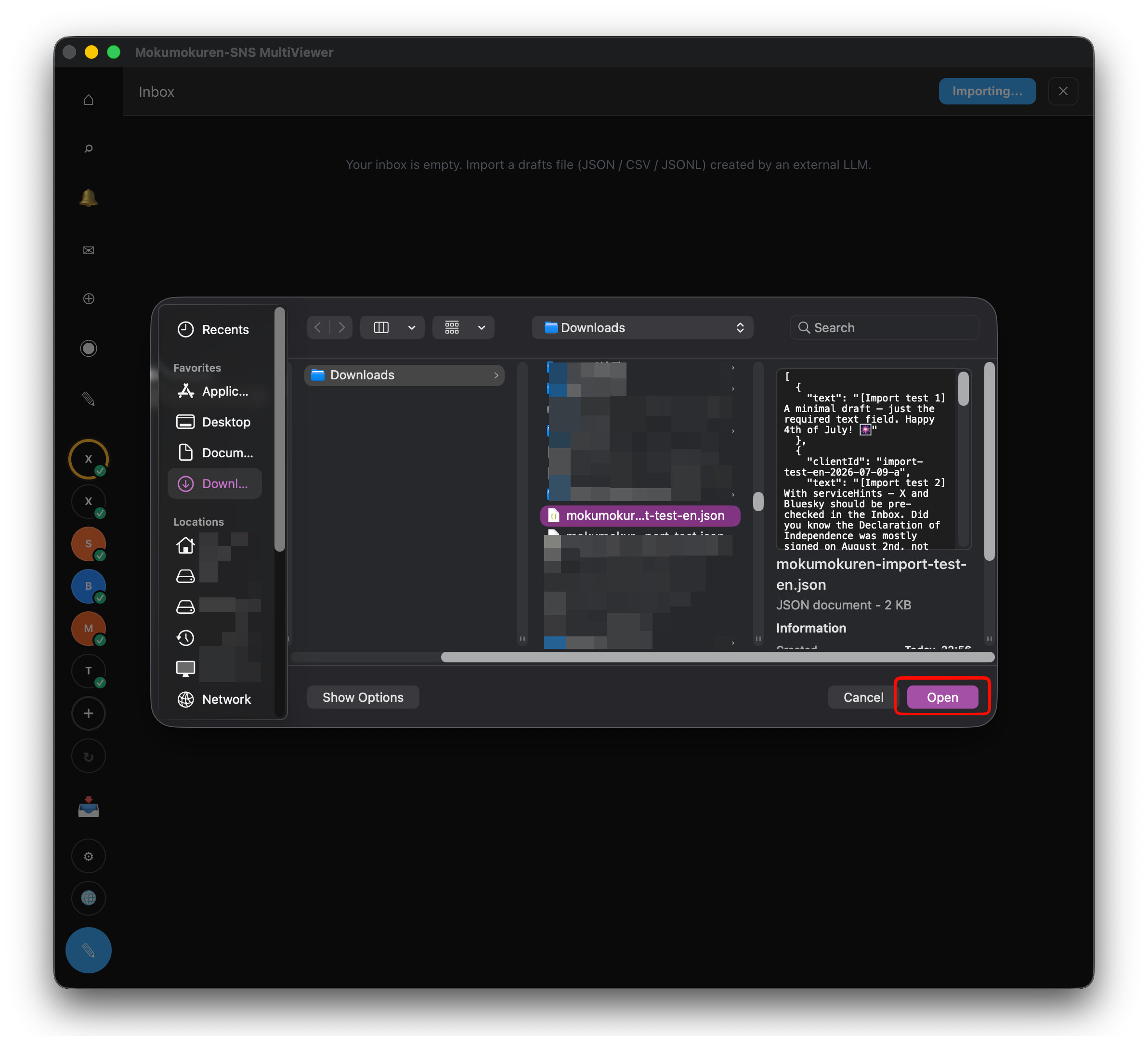
- A preview appears (accepted / rejected, with reasons).
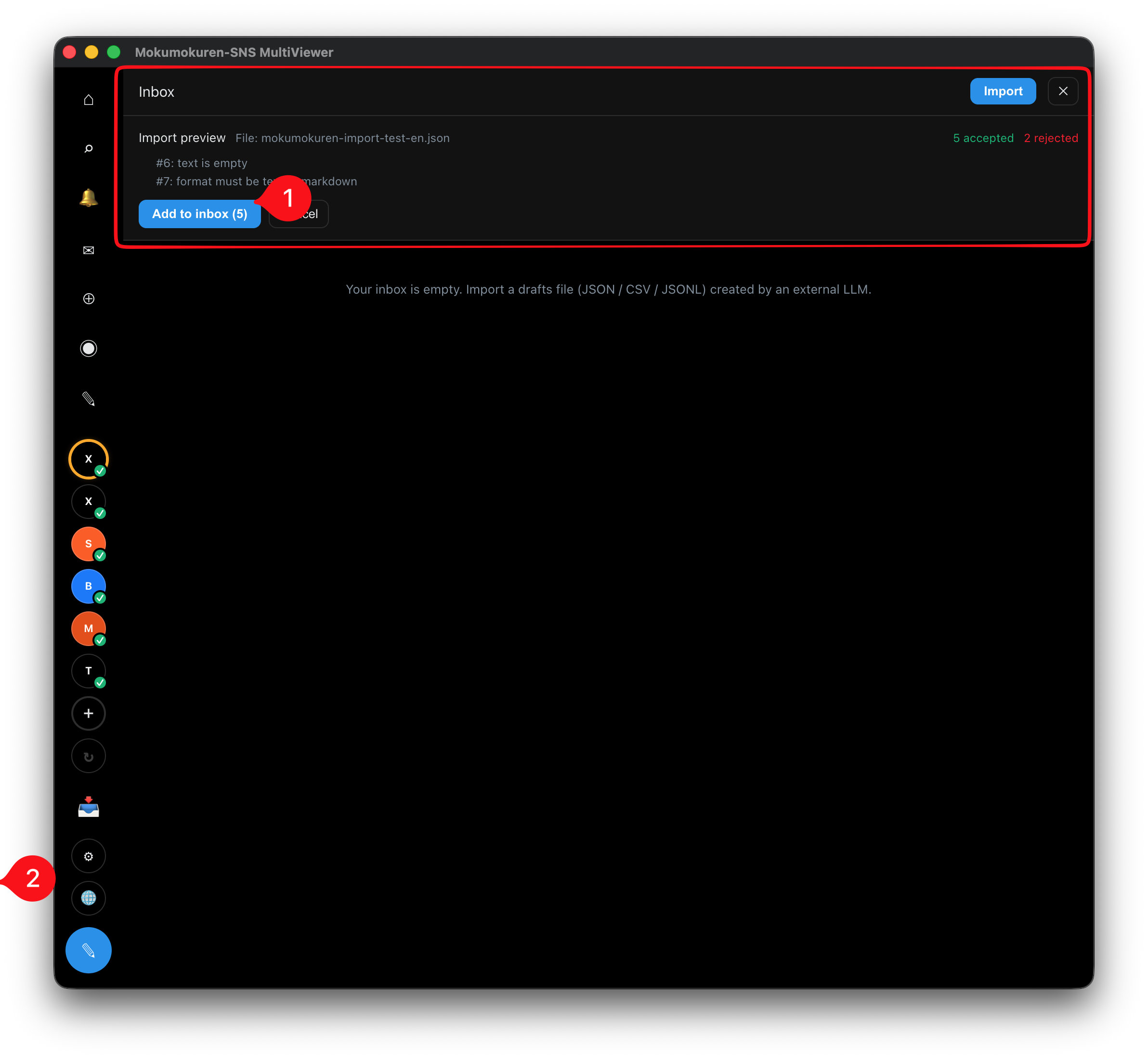
- Confirm with Add to Inbox.
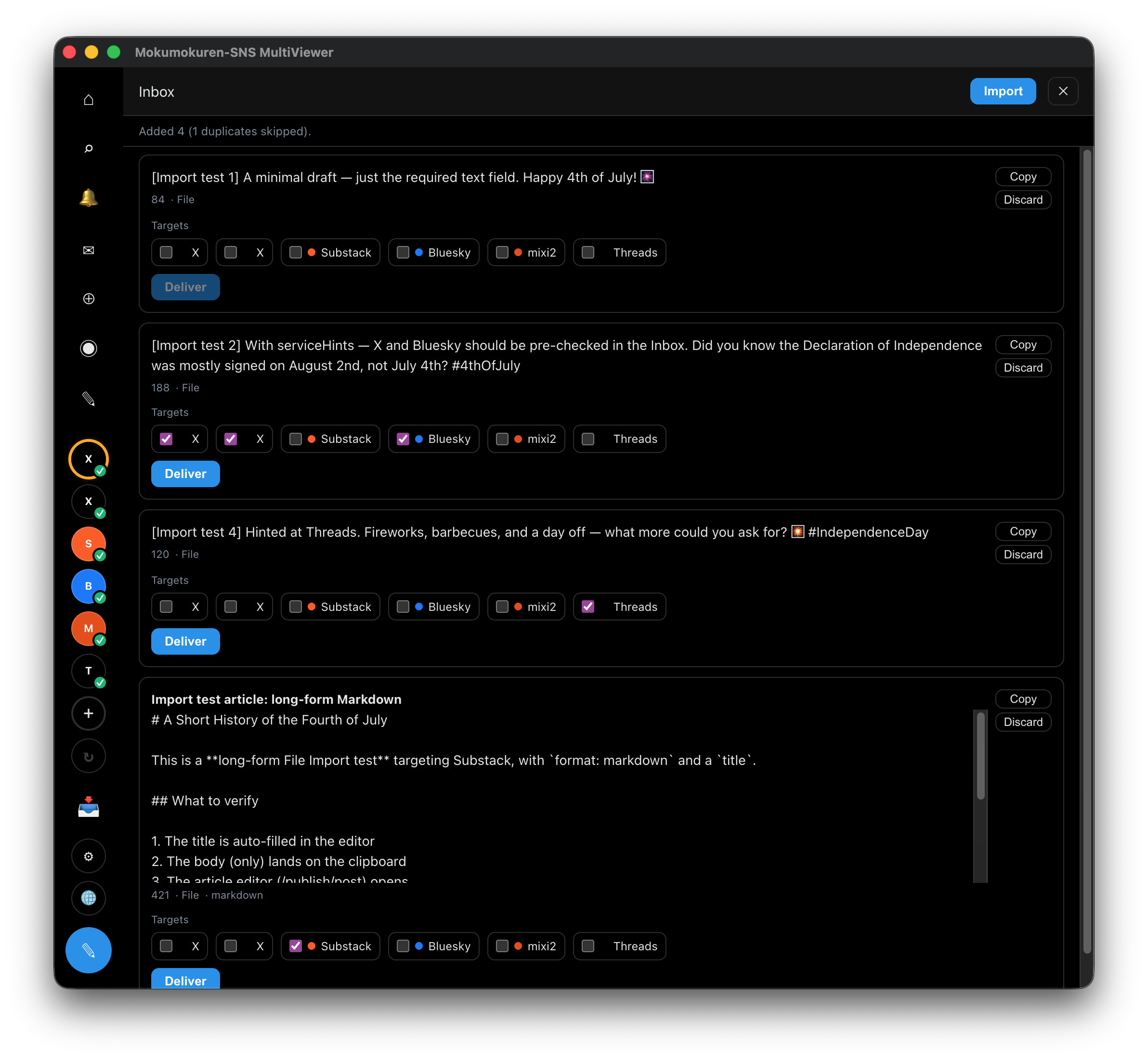
For JSON, the top level is an array of drafts (a single object or {"drafts":[...]} also works). For CSV, the header row is text,title,format,serviceHints,clientId (serviceHints separated by ; or |).
2. MCP integration
AI clients such as Claude Desktop / Codex can send drafts directly via submit_drafts. → MCP integration
Routing
Each draft in the Inbox shows a checkbox per logged-in account. Accounts matching serviceHints are pre-checked. One draft can be cross-posted to multiple accounts.
- Accounts that aren't logged in can't be targets.
- Hidden accounts are automatically re-shown on delivery.
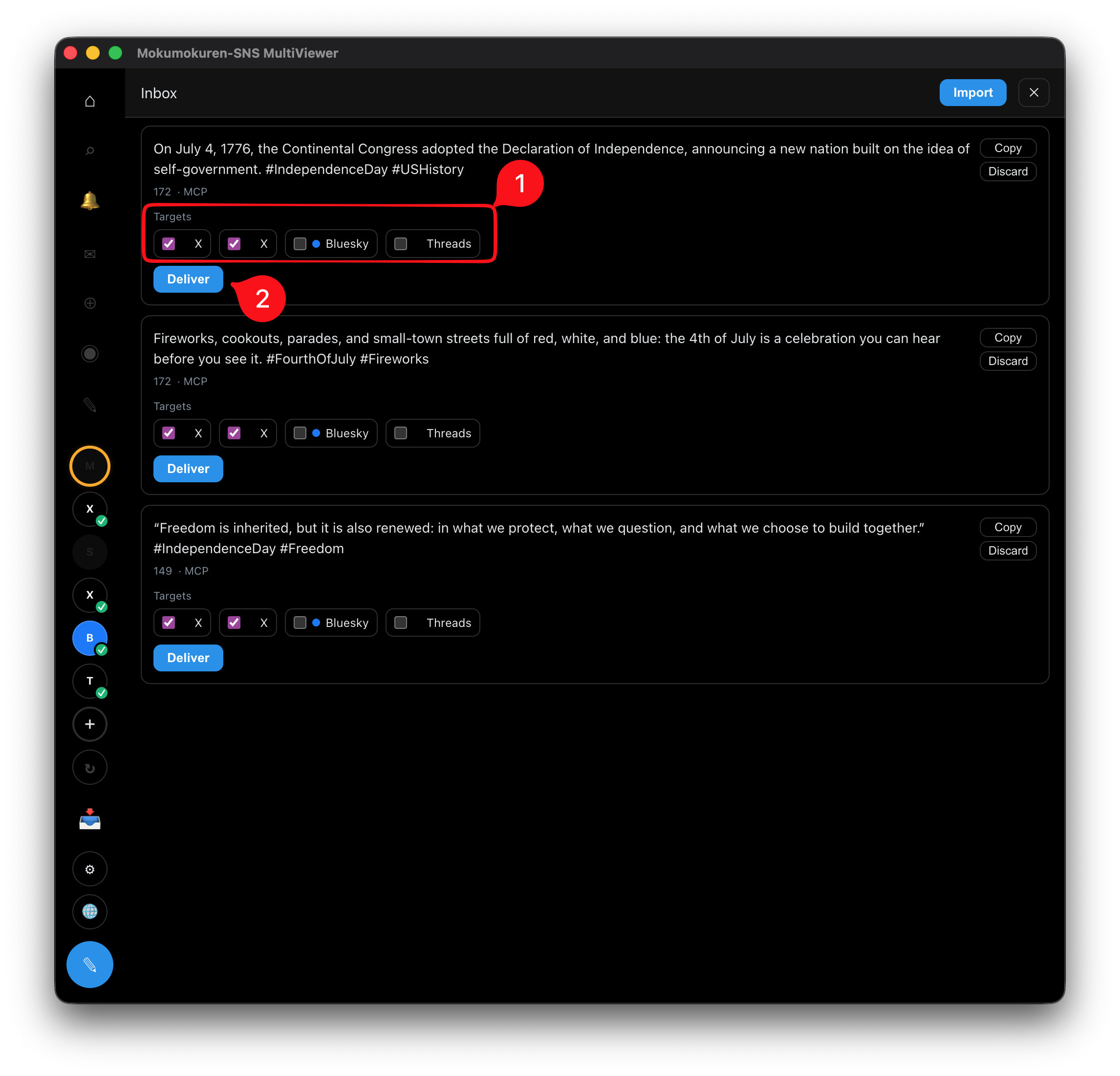
Delivery
Choose the targets and press Deliver — the content lands in each account's compose form. You perform the final send in each SNS's own UI (mokumokuren never sends).
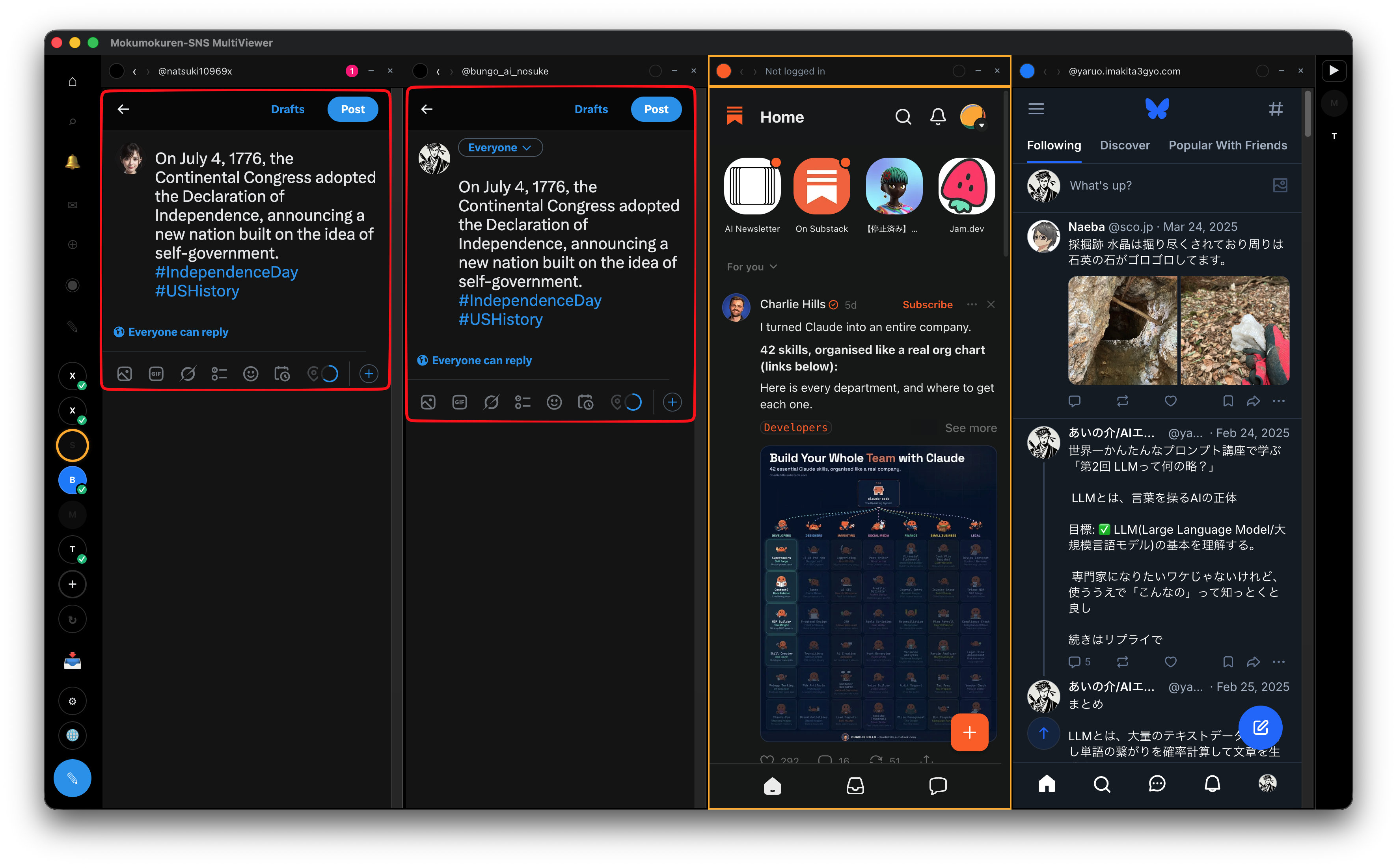
Behavior differs by service:
| Service | Delivery behavior |
|---|---|
| X / Bluesky / Threads | Body is auto-filled into the compose form |
| mixi2 / Substack (short posts) | The composer (popup) opens → paste with Cmd/Ctrl+V (no auto-fill) |
Substack (article: has title or format:"markdown") | The article editor opens with the title auto-filled; paste the body with Cmd/Ctrl+V |
:::tip Substack article delivery (first time only) So the article editor can open automatically, open your Substack dashboard once in the Substack column (avatar → dashboard). Your publication is recorded, and from then on article delivery opens the editor automatically. :::
Other actions
- Copy — puts the draft's
title + bodyon the clipboard (for pasting manually). - Discard — removes the draft from the Inbox.